Fake iPhone Message Generator
Write both sides of an iPhone Messages chat, match the iOS look, and download a clean screenshot. Free, no account, and it renders live as you type.
Build your conversation
How it works
- 1
Write the Chat
Add messages, set each one as sent or received, and switch between blue iMessage and green SMS bubbles.
- 2
Match the Phone
Set the time, battery, and signal, upload a contact photo, and flip between light and dark.
- 3
Download It
Export a high-resolution PNG that lines up with a real iPhone screenshot.
What is in the editor
Blue and green bubbles
Mark each line sent or received, and switch a sent message between blue iMessage and green SMS. Received bubbles stay gray, the way an iPhone shows them.
A status bar that matches
Set the time, battery, signal, and Wi-Fi. The bar fits the phone you pick, from the old home button layout to the Dynamic Island.
Light and dark canvas
The phone has its own light and dark mode, separate from the site. Dark mode uses a true black background and the brighter bubble colors iOS shows at night.
Group chats with names
Add several people and name the group. Each incoming message carries the sender name and a small avatar above the run.
Tapbacks and typing
React to any message with a Tapback, and show the three typing dots or a Delivered and Read label on the last sent line.
A clean download
Save a PNG or JPG at up to three times the device resolution. No watermark, no sign up, and the file matches what is on screen.
Examples
What you can make
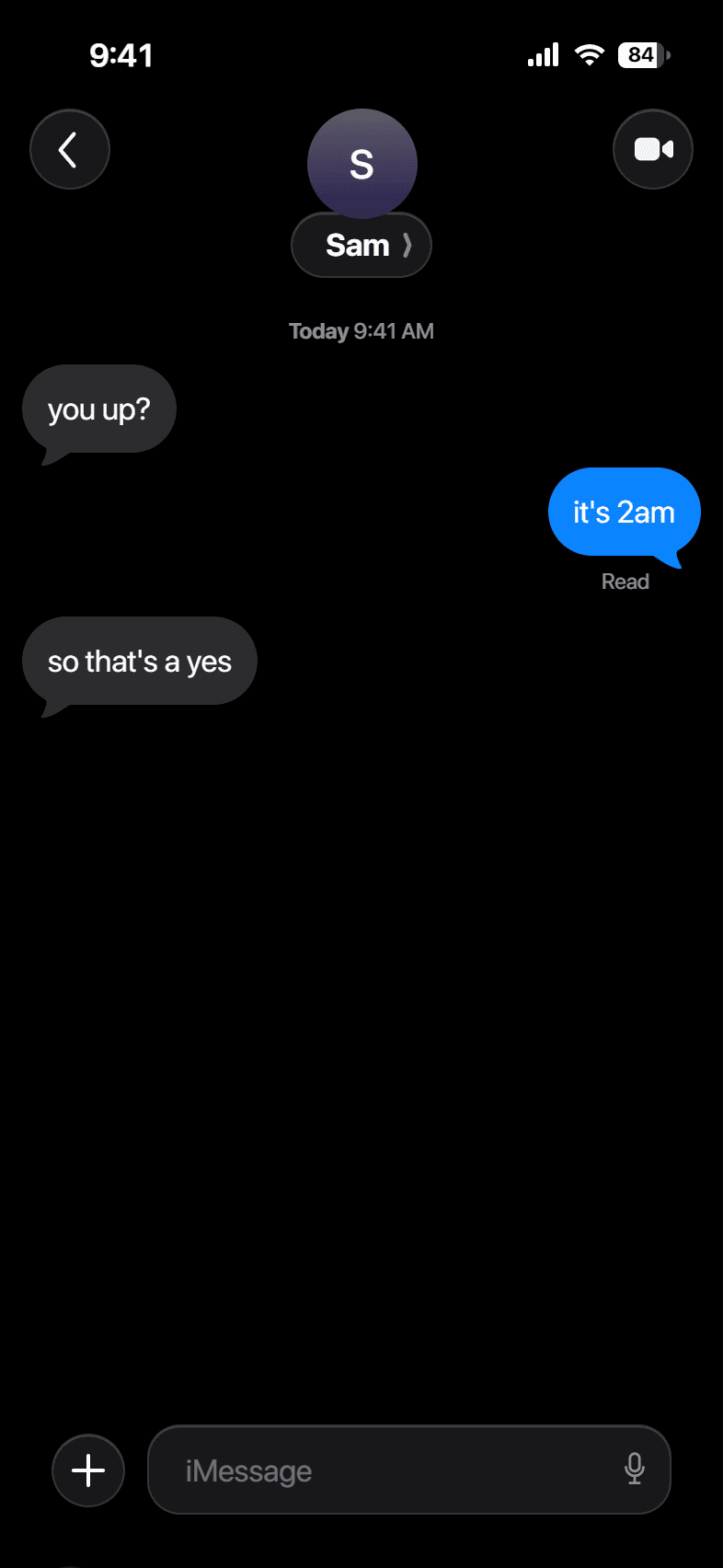
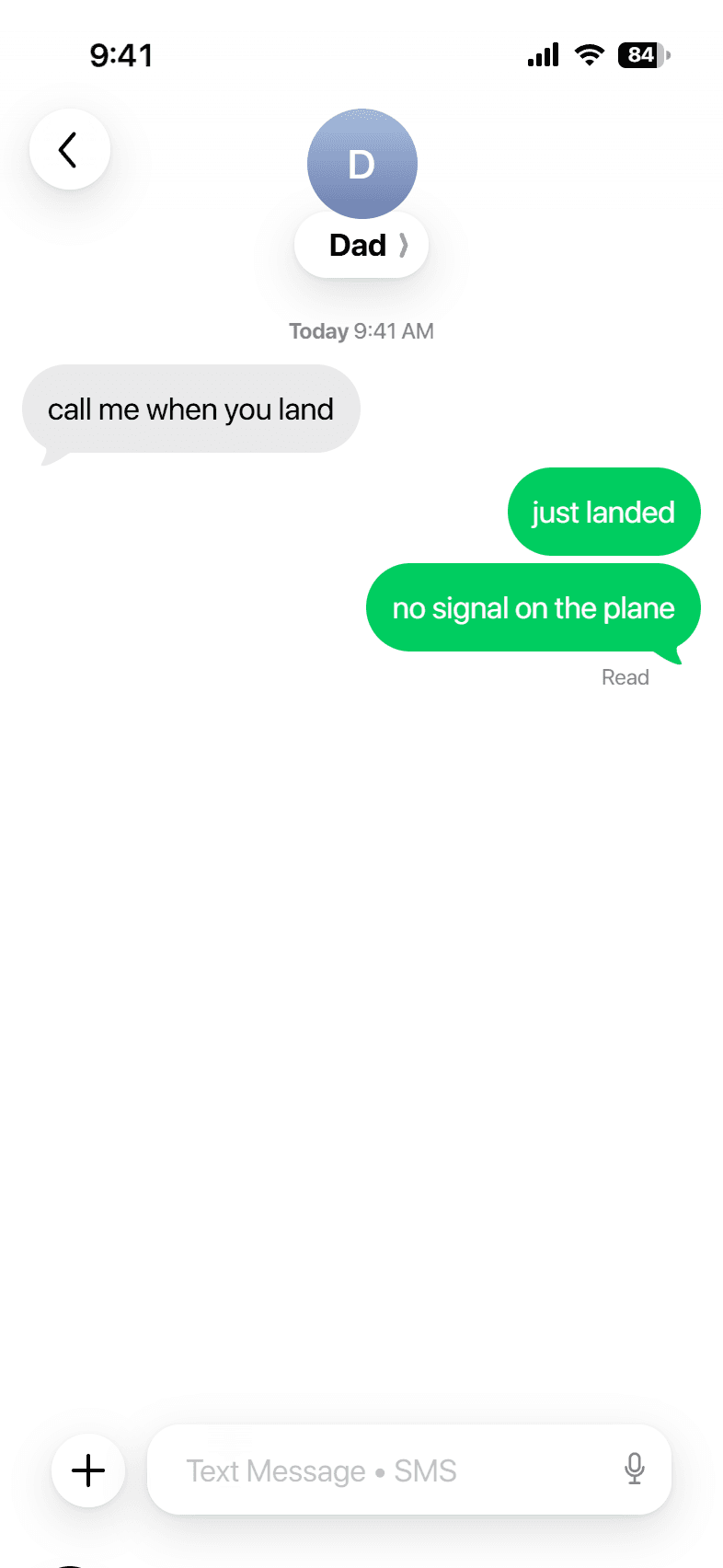
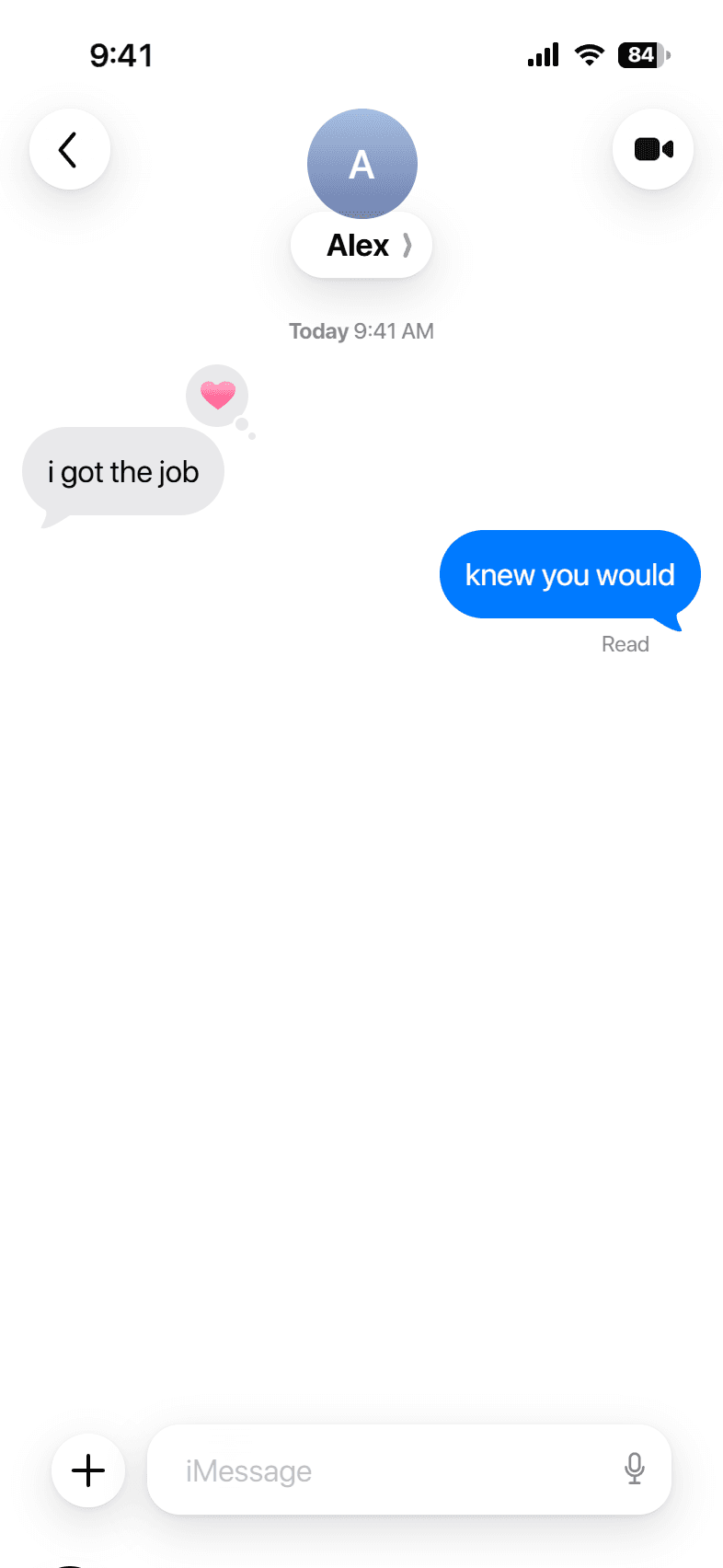
The generator covers the everyday parts of iPhone Messages, so most chats you have seen on a phone are easy to recreate. Write a one line reply or a long back and forth. Keep it on iMessage blue, drop to green SMS for a text to an Android, or mix both in the same thread. Set a contact name and photo, name a group, and pick the iPhone model and iOS version the screenshot should match.
Everything renders live while you type, so the phone on screen is exactly what you download. There is no separate preview that ends up looking different from the saved image.
Why the screenshots look real
The canvas follows the iOS spec for bubble shape, color, spacing, and the status bar, then it is tuned by eye against real screenshots. Bubbles tuck into a tail at the end of a run, receipts sit under the last sent line, and Tapbacks match the version you choose: monochrome before iOS 18 and full color after. The canvas uses Apple's SF Pro, so the text spacing lands where a real phone puts it.
Export keeps that detail. The image saves at up to three times the device resolution, the same density as a screenshot taken on the phone itself, so it stays sharp when you post or print it.
Who uses it
People reach for it to make memes and group chat jokes, to drop a realistic mockup into a design or a pitch, to illustrate a tutorial, and for fiction like a screenshot in a story or a film prop. It is a drawing tool for a Messages screen.
It is not a way to impersonate a real person or to fake evidence. The disclaimer stays in view, and nothing here is built to help you deceive anyone.
Questions
Is it free?+
Yes. Every feature here is free, with no account and no watermark.
Will it look like a real screenshot?+
The canvas matches iOS colors, spacing, and the status bar, so it reads as a real iPhone Messages screen at a glance.
Do you store my conversations?+
No. The chat is built in your browser, and nothing is sent to a server unless you choose to make a share link.
Can I use my own contact photo?+
Yes. Upload any image and it shows in the header. It stays on your device.
What is this for?+
Memes, fiction, design mockups, and jokes. It is not for impersonating a real person or faking evidence.
Can I make blue and green bubbles?+
Yes. Set any sent line to blue iMessage or green SMS. The green bubble is what an iPhone shows when it texts an Android. Received bubbles stay gray either way.
Does it work on Android?+
The editor runs in any modern browser, so you can build a chat on an Android phone or a laptop. The screenshot it makes is the iPhone Messages look.
Can I add a read receipt or typing dots?+
Yes. Turn on a Delivered or Read label under the last sent message, or show the three typing dots for an incoming reply.
Which iPhones and iOS versions can I pick?+
Models from the home button SE through the Dynamic Island Pro line, and iOS looks from the older flat style up to the iOS 26 glass treatment.
Can I make a group chat?+
Yes. Turn on group mode to add several people. Each received message shows the sender name and a small avatar, the same as a real group thread.